Tracer
The Tracer is a component that enables you to manage and visualize relationships between objects in CertHub. It provides a clear overview of how different items are connected and allows you to establish new connections between any objects in the system.
Core Features
The Tracer provides three main functionalities:
- View existing relationships between objects
- Create new connections between objects
- Manage and maintain relationship integrity
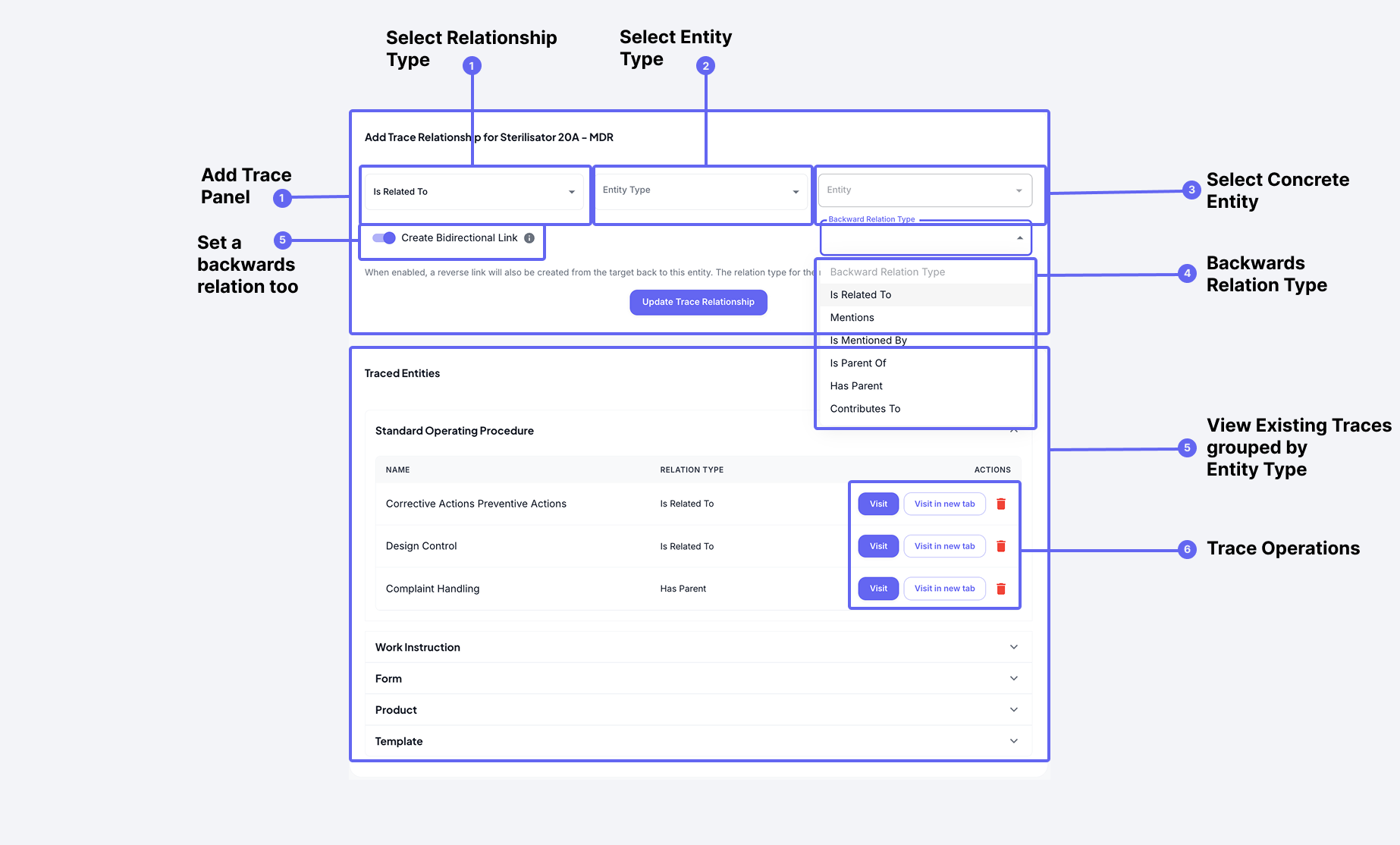 The Tracer interface showing outgoing relationships and actions for each connection
Viewing Relationships
The main interface displays all outgoing connections for the current object. For each connection, you can see:
- The linked object's name
- The type of relationship
- Action buttons to:
- Visit the linked object
- Delete the connection
Creating New Traces
When you need to establish a new connection:
- Click the Edit button to enter edit mode
- Select the type of object you want to link to
- Choose the specific object
- Set the relationship type
- Optionally configure backlink settings
- Save the new trace
When creating a bidirectional trace (backlink), you must specify the relationship type for the backlink separately. This ensures both objects have properly defined relationships to each other.
Automatic Traces
In addition to manually created traces, CertHub automatically generates traces in certain scenarios to maintain system-wide traceability. The most common source of automatic traces is the Process Editor, which creates traces whenever you:
- Assign a template, SOP, knowledge unit, or other object to a process element
- Save changes to a process with referenced objects
- Remove references from process elements
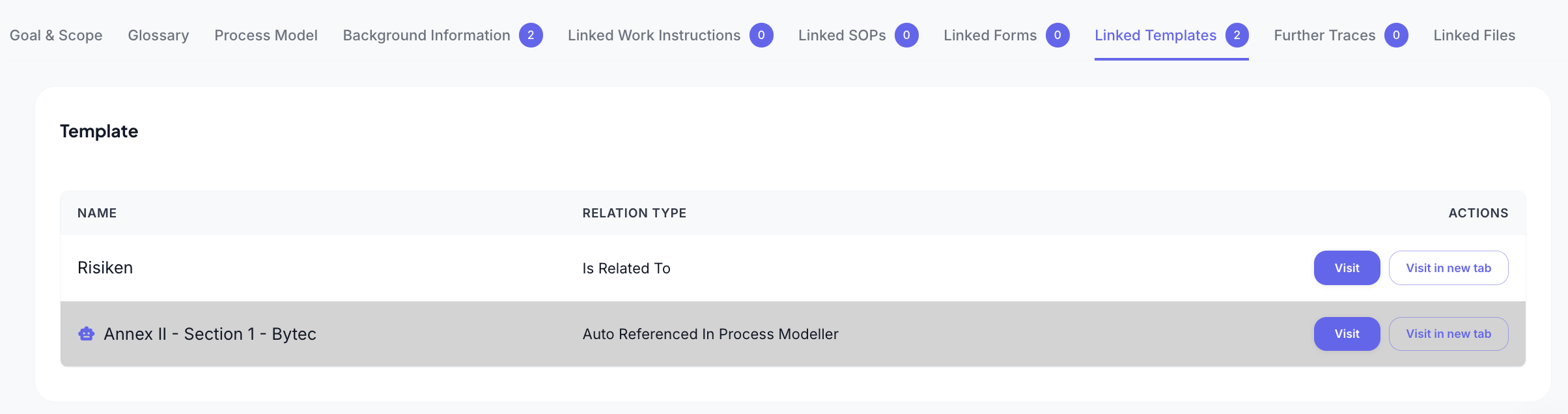 The Tracer interface showing visual differentiation between automatic and manual traces
Visual Differentiation
Automatic traces are visually distinguished from manually created traces in the Tracer interface:
- Automatic traces have a distinct visual indicator showing they were system-generated
- Manual traces appear with the standard interface elements
- Both types provide the same relationship functionality and integrity
This visual differentiation helps you understand how relationships were established and which ones are maintained by the system versus manually created.
Managing Automatic Traces
While automatic traces appear in the Tracer interface alongside manual traces, they should be handled differently:
-
Deletion Considerations:
- Automatic traces should generally not be deleted as they reflect actual usage in the system
- The system will display a warning when you attempt to delete an automatic trace
- If you confirm deletion, be aware that this may disrupt functionality that depends on these relationships
- The system will recreate the trace the next time the source action occurs (e.g., when the process is saved again)
-
Recommended Approach:
- Instead of deleting automatic traces, remove the reference from the source (e.g., unlink the object in the Process Editor)
- This ensures that both the visual representation and the underlying data relationships remain consistent
- When the reference is removed from the source, the automatic trace will be removed properly
Deleting automatic traces can cause inconsistencies between what is displayed in editors (like the Process Editor) and the actual relationships between objects. This can lead to confusion and potential issues with impact analysis and regulatory compliance.
Referencing Specific Versions of Entities
The Tracer allows you to reference not just entities, but specific versions of those entities. When you create a trace to a versioned object (such as a document, or template), you can select the exact version you want to reference. This ensures traceability and compliance, as your references always point to the correct, intended state of the entity at the time of linking.
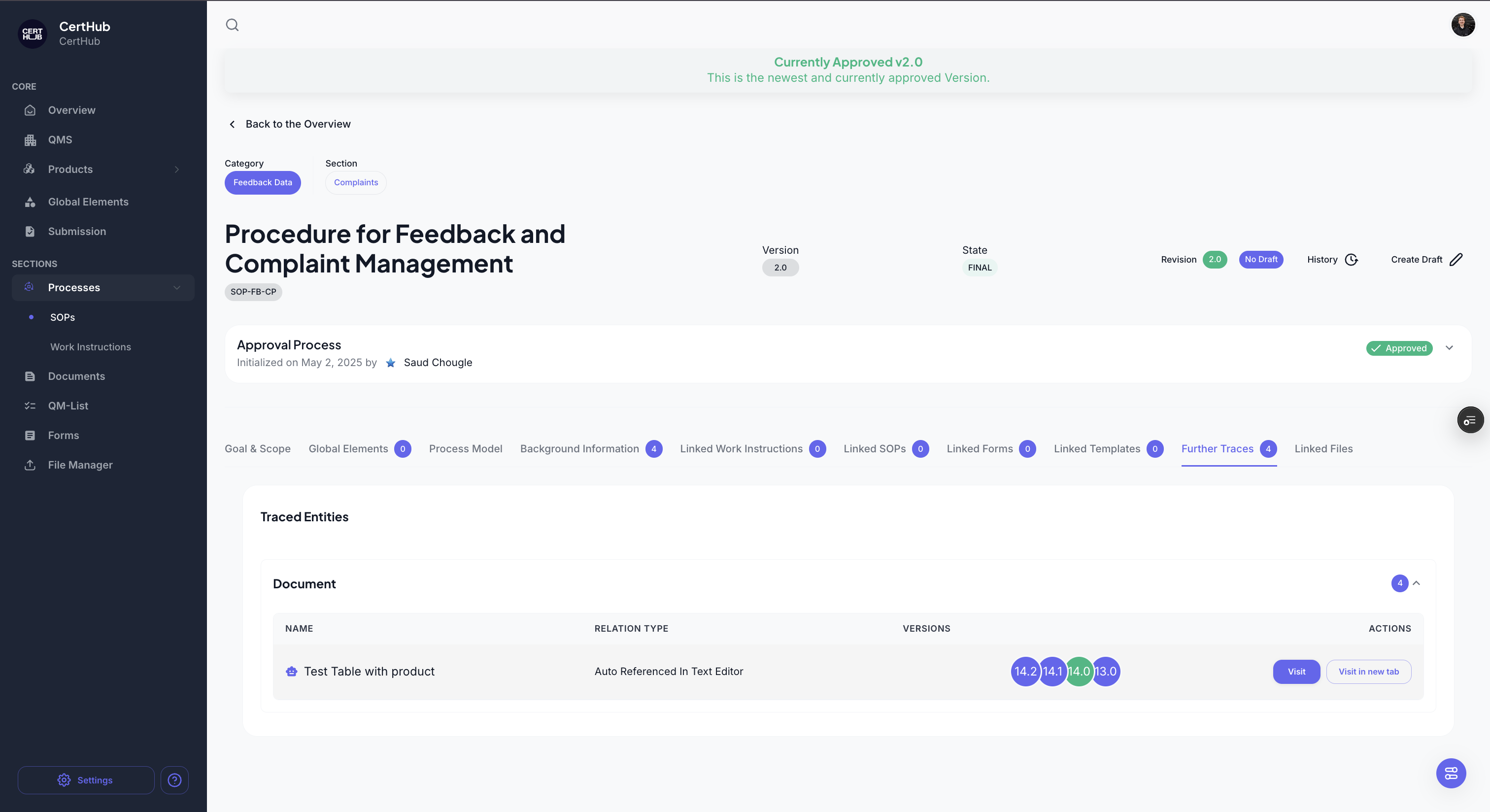 The Tracer interface displays all referenced versions for each entity. Versions are grouped and color-coded: green indicates the latest approved version. This makes it easy to see which versions are referenced and their approval status at a glance.
Version Grouping and Display
Referenced versions are grouped and clearly displayed in the Tracer interface. For each traced entity, you will see a list of all referenced versions, making it easy to track which versions are in use and how they relate to your current process or documentation. Green: Indicates the latest approved version of the entity. This helps you quickly identify which version is currently valid and approved for use.
Managing Reference Integrity
The Tracer helps maintain data consistency by monitoring references. When a linked object is deleted or becomes invalid:
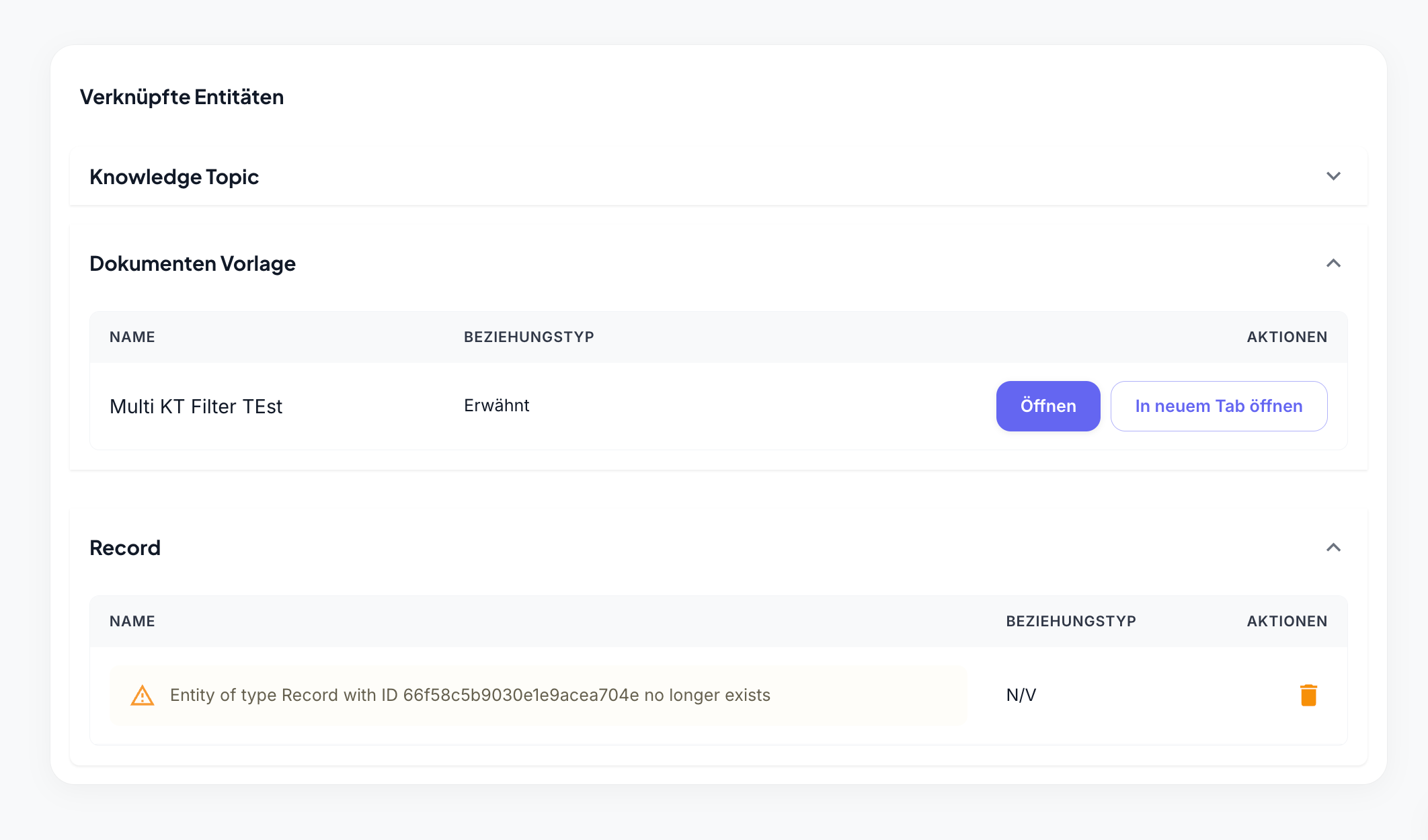 Warning displayed when a linked entity is missing or invalid
- A warning message is shown
- You can easily identify broken references
- Options to clean up invalid links are provided
Supported Object Types
You can create traces between any of these CertHub objects:
| Object Type | Description |
|---|---|
| SOP | Standard Operating Procedures |
| Work Instruction | Detailed task guides |
| Form | Data collection templates |
| Product | Product information |
| Knowledge Unit | Learning materials |
| Knowledge Topic | Subject areas |
| Document | General documentation |
| Template | Reusable formats |
| Record | Historical data |
The available entity types in the Tracer may be limited based on the context where it appears. For example:
- When viewing an SOP with dedicated template linking tabs, the Tracer might only allow template connections
- Other sections may have similar restrictions based on their specific use cases
- These restrictions help maintain clear and purposeful relationships between objects